
Anúncios
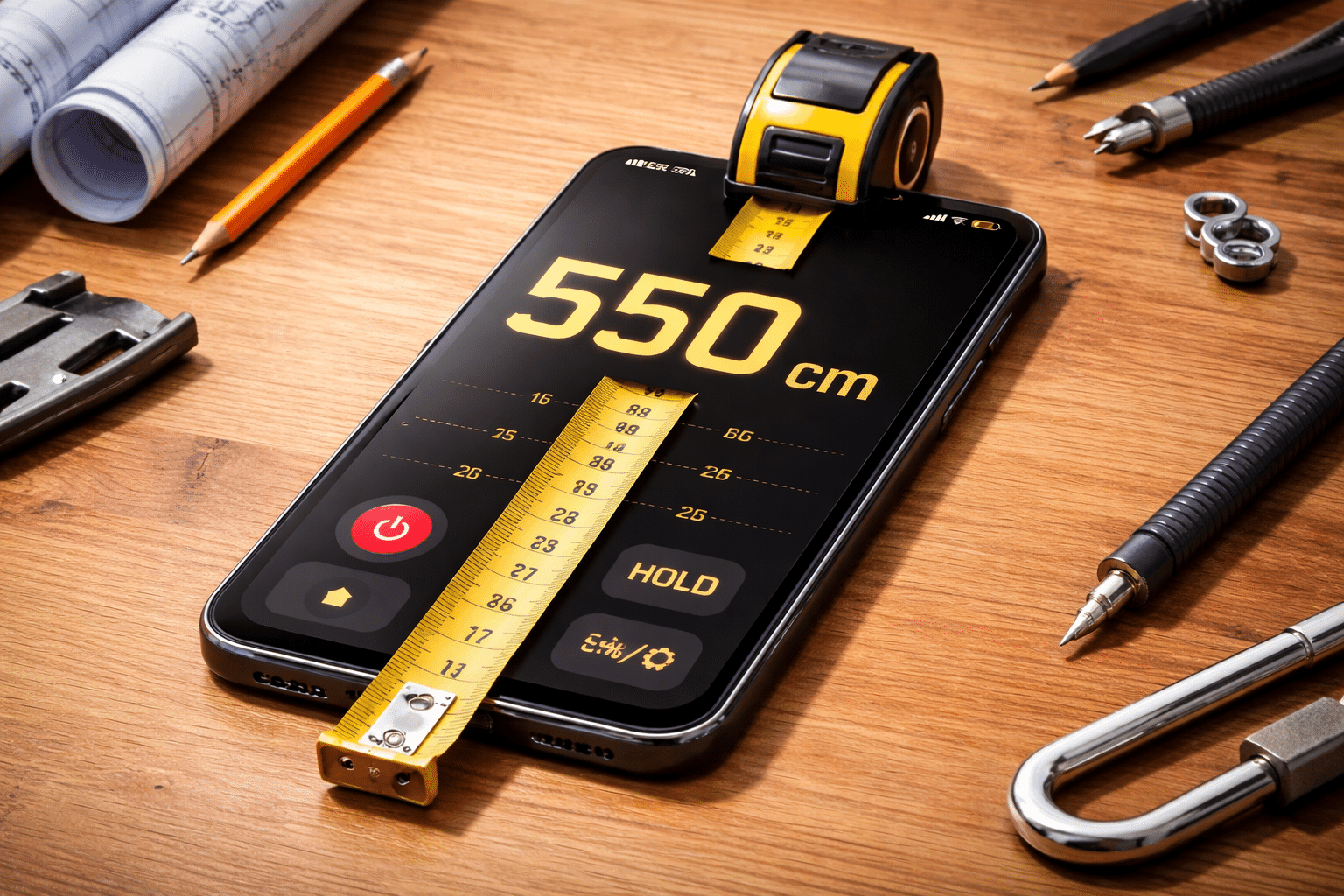
Need to measure something but don’t have a tape measure nearby? Your smartphone can transform into a practical and accurate measuring tool in seconds.


Gone are the days when you needed a physical tape measure for every measurement task. Modern smartphones come equipped with advanced sensors and augmented reality technology that can turn your device into a surprisingly accurate measuring instrument. Whether you’re shopping for furniture, planning a home renovation, or simply need quick dimensions of an object, your phone has you covered.
This comprehensive guide will walk you through the simple steps to use your smartphone as a measuring tape, explore the best apps available, and share practical tips to ensure accurate measurements every time. Let’s dive into this game-changing mobile functionality that’s literally at your fingertips! 📱
Understanding How Phone Measuring Apps Work 🔍
Before jumping into the practical application, it’s helpful to understand the technology behind smartphone measuring tools. Most modern devices use augmented reality (AR) combined with the phone’s camera and motion sensors to calculate distances and dimensions.
The process involves your camera identifying surfaces and reference points in the real world. As you move your phone, the built-in gyroscope and accelerometer track movement while the camera captures spatial data. Advanced algorithms then process this information to calculate measurements with impressive accuracy.
iPhone users benefit from Apple’s ARKit technology, while Android devices utilize Google’s ARCore platform. Both systems have evolved significantly over recent years, making measurements more reliable and user-friendly than ever before.
Built-In Measure Apps: Your First Stop 📏
Most smartphones now come with pre-installed measuring applications, eliminating the need to download third-party apps immediately. Let’s explore how to access and use these native tools.
Using the iPhone Measure App
Apple’s Measure app comes standard on iOS devices running iOS 12 or later. Here’s how to use it effectively:
- Open the Measure app from your home screen
- Move your phone slowly around the area you want to measure
- Wait for the white circular indicator to appear on your screen
- Tap the plus (+) button at a starting point
- Slowly move your phone to the endpoint
- Tap the plus button again to complete the measurement
- The measurement will display directly on your screen
The app automatically detects rectangular objects like picture frames, posters, and screens, making it even easier to measure common household items quickly.
Android Measure App Alternative
Google provides the Measure app for compatible Android devices. The functionality is similar to the iPhone version:
- Download Google Measure from the Play Store if not pre-installed
- Open the app and grant camera permissions
- Point your camera at the surface where you want to measure
- Follow the on-screen instructions to calibrate
- Tap to mark your starting point
- Move to the endpoint and tap again
- View your measurement instantly on the display
Note that not all Android devices support ARCore, so compatibility may vary depending on your phone model.
Top Third-Party Measuring Apps Worth Downloading 🌟
While built-in apps work well for basic measurements, specialized third-party applications offer enhanced features and sometimes greater accuracy. Let’s explore some standout options.

AR Ruler App – Tape Measure
This versatile application transforms your smartphone into a complete measurement toolkit. It offers multiple measurement modes including linear distance, height, area, volume, and even angles. The interface is intuitive, making it perfect for both beginners and professionals.
Key features include the ability to save measurements, export data, and switch between metric and imperial units seamlessly. The app works remarkably well for furniture shopping, as you can measure spaces and items on the fly.
Ruler App with Camera View
For quick, simple measurements, this app provides a straightforward digital ruler overlay on your camera view. Just place an object on your screen, and the ruler displays precise dimensions. It’s particularly useful for measuring small objects like jewelry, screws, or craft materials.
The app calibrates automatically based on your phone’s screen size, though manual calibration options are available for maximum precision.
MagicPlan Floor Plan Creator
If you’re tackling larger projects like room layouts or home renovations, MagicPlan takes phone measuring to the next level. This app creates detailed floor plans by simply pointing your camera at room corners and walls.
You can measure multiple rooms, add furniture dimensions, calculate total square footage, and even generate professional PDF reports. It’s an invaluable tool for real estate professionals, interior designers, and homeowners planning renovations.
Step-by-Step: Measuring Different Objects 📐
Different items require slightly different measurement approaches. Here’s how to measure various common objects accurately using your phone.
Measuring Walls and Large Surfaces
Stand approximately 3-5 feet away from the wall for optimal results. Start at one corner, tap to mark your starting point, then slowly pan your phone along the wall’s length. Keep your movement steady and level. When you reach the opposite corner, tap again to complete the measurement.
For height measurements, start at the floor level and move upward vertically, maintaining a consistent distance from the wall.
Measuring Furniture and Medium Objects
Position yourself so you can see the entire object in your camera view. The app will often automatically detect rectangular objects and display measurements instantly. If not, manually mark the corners or edges you want to measure.
Walk around the object if you need multiple dimensions like length, width, and height. Most apps allow you to save multiple measurements for the same item.
Measuring Small Items
For objects smaller than a few inches, ruler-style apps with on-screen overlays work best. Place the item directly on your phone screen, align it with the digital ruler, and read the measurement directly.
Ensure good lighting for accurate detection, and consider using a contrasting background to help your phone’s camera identify the object clearly.
Pro Tips for Maximum Accuracy 🎯
While smartphone measuring apps are impressively accurate, following these professional tips will ensure the most precise results possible.
Optimize Your Lighting Conditions
Good lighting is absolutely critical for accurate measurements. Natural daylight works best, but if you’re measuring indoors, turn on all available lights. Avoid harsh shadows or direct sunlight that creates glare, as these conditions confuse the camera sensors.
If you’re measuring in dim conditions, consider using an external light source or waiting for better lighting if possible.
Calibrate Your App Regularly
Many measuring apps include calibration features that improve accuracy. Use a known measurement—like a standard ruler or tape measure—to calibrate your app periodically. This compensates for any sensor drift or software inconsistencies.
Recalibrate after software updates or if you notice measurements seem consistently off.
Keep Your Phone Steady
Shaky hands lead to inaccurate measurements. Move slowly and deliberately when marking measurement points. If possible, brace your arms against your body or rest them on a stable surface to minimize movement.
Some users find that holding their phone with both hands provides better stability than one-handed operation.
Measure Multiple Times
For important measurements, take multiple readings and calculate the average. This simple technique dramatically improves accuracy by compensating for minor errors in individual measurements.
Most apps allow you to save measurements, making it easy to compare multiple attempts.
Common Measurement Scenarios and Solutions 🏠
Let’s explore practical situations where your phone’s measuring capability becomes incredibly useful, along with specific techniques for each scenario.
Furniture Shopping Made Easy
Before heading to the furniture store, measure your available space at home using your phone. Save these measurements in the app or take screenshots. When shopping, measure potential furniture pieces to ensure they’ll fit perfectly in your space.
Many modern apps even include visualization features that let you virtually place furniture in your room using AR technology, giving you a preview before making the purchase.
Hanging Pictures and Decorations
Achieve perfectly level, evenly spaced wall decorations using your phone’s measuring app. Measure the wall space, calculate center points, and mark exact positions for nails or hooks. The level feature available in many apps ensures your pictures hang straight.
For gallery walls with multiple frames, measure and plan the entire layout before making any holes in the wall.
DIY Projects and Home Improvement
Planning to build a bookshelf or install new flooring? Your phone can measure lumber dimensions, room sizes, and material quantities. While these measurements are suitable for planning purposes, always double-check critical dimensions with a physical tape measure before cutting materials.
The ability to quickly measure and adjust plans on-site makes DIY projects more efficient and reduces costly mistakes.
Shipping and Packaging
Need to ship an item and determine box dimensions? Your phone can quickly measure packages, helping you calculate shipping costs accurately and choose appropriate box sizes. This is particularly helpful for online sellers who ship items regularly.
Measure all three dimensions (length, width, height) to calculate volume and determine if items will fit in standard shipping boxes.
Understanding Measurement Limitations ⚠️
While smartphone measuring technology is impressive, it’s important to understand its limitations to avoid disappointment or errors in critical applications.
Accuracy Range
Most phone measuring apps are accurate within 1-2% of actual dimensions for distances up to about 10-15 feet. Beyond that distance, accuracy decreases significantly. For measurements where precision is critical—like cutting expensive materials—always verify with a physical measuring tool.
Small measurements (under 1 inch) can be particularly challenging and may have larger margins of error.
Surface and Environmental Factors
Reflective, transparent, or uniformly colored surfaces can confuse measurement apps because the camera struggles to identify reference points. Dark environments, excessive motion, or complex patterns may also affect accuracy.
Outdoor measurements in bright sunlight can be challenging due to screen visibility and glare affecting the camera sensors.
Device Compatibility
Older smartphones may not support advanced AR features required for measuring apps. Check your device’s compatibility with ARKit (iPhone) or ARCore (Android) before relying on these tools for important projects.
Budget smartphones may have less sophisticated sensors, resulting in less accurate measurements compared to flagship devices.
Enhancing Your Measurement Workflow 💡
Take your phone measuring capabilities to the next level with these workflow enhancements and complementary techniques.
Combining Digital and Physical Tools
Use your phone for quick preliminary measurements and planning, then verify critical dimensions with a physical tape measure. This hybrid approach combines convenience with precision, giving you the best of both worlds.
Keep a small tape measure in your car or bag for situations where your phone’s measurements need verification or when working in challenging lighting conditions.
Documentation and Sharing
Most measuring apps allow you to take screenshots or save measurement data. Create a measurement library for your home, including room dimensions, furniture sizes, and appliance specifications. This reference database becomes incredibly valuable for future projects.
Share measurements directly from the app via email or messaging to contractors, designers, or family members involved in projects.
Learning Your App’s Advanced Features
Invest time exploring all features your chosen measuring app offers. Many include tools you might not initially discover, such as angle measurement, volume calculation, or the ability to create detailed floor plans.
Watch tutorial videos or read the app’s help documentation to master advanced features that can dramatically expand your measurement capabilities.
Troubleshooting Common Issues 🔧
Encountering problems with your phone measuring app? Here are solutions to the most common issues users face.
App Won’t Calibrate or Initialize
If your measuring app fails to start properly, first ensure you’ve granted all necessary permissions, particularly camera access. Restart the app completely by closing it from your phone’s app switcher and reopening it.
Try moving to an area with better lighting and more distinct surfaces. The app needs to identify planes and reference points to initialize the AR system.
Measurements Seem Consistently Inaccurate
Check if your phone case is interfering with sensors or the camera. Remove thick cases during measurement sessions. Clean your camera lens thoroughly, as smudges significantly affect accuracy.
Recalibrate the app using a known reference measurement, and update the app to the latest version, as developers regularly improve measurement algorithms.
App Freezes or Crashes
Measuring apps are resource-intensive and can strain older phones. Close other running applications to free up memory. If crashes persist, restart your phone and ensure you have adequate storage space available.
Some apps work better than others on specific devices, so don’t hesitate to try alternative measuring applications if you experience persistent technical issues.
Making the Most of Your Digital Tape Measure 🚀
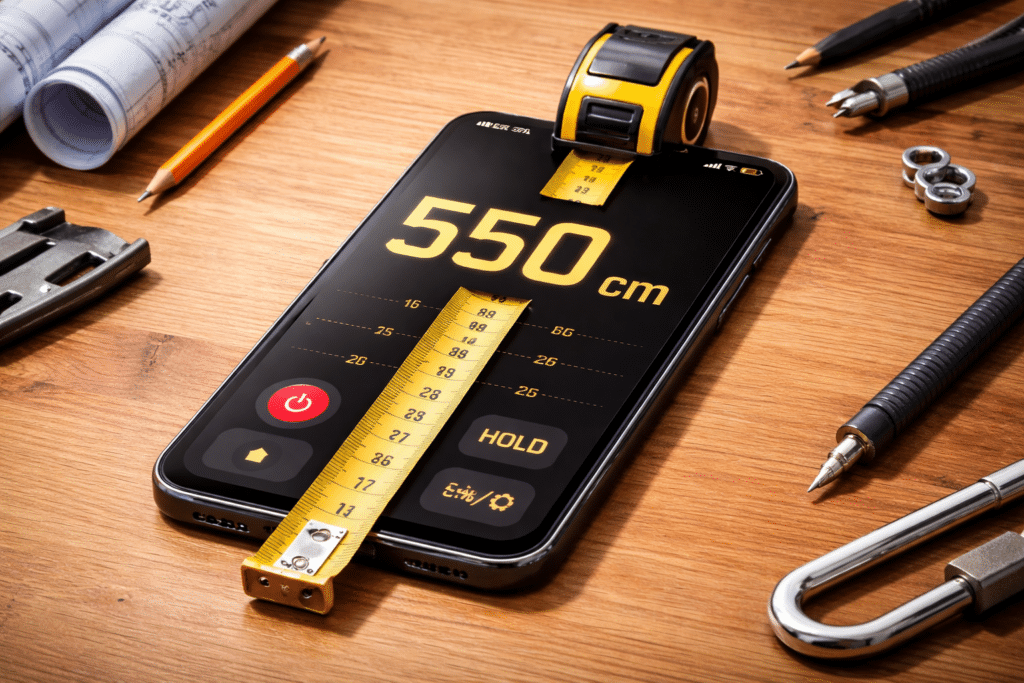
Your smartphone’s measuring capability represents a perfect example of how technology simplifies everyday tasks. While it won’t completely replace traditional measuring tools for professional applications, it’s remarkably effective for countless common scenarios.
The convenience of always having a measuring tool in your pocket eliminates the frustration of needing dimensions when you’re away from home. Whether you’re shopping, planning projects, or simply satisfying curiosity about object sizes, your phone delivers quick, reasonably accurate measurements with minimal effort.
Start with your phone’s built-in measuring app to familiarize yourself with the technology. As you become comfortable with basic measurements, explore specialized third-party apps that offer advanced features tailored to your specific needs.
Remember that practice improves your measurement technique significantly. The more you use these tools, the better you’ll understand their capabilities and limitations. You’ll develop an intuition for when phone measurements are sufficient and when to reach for a physical tape measure.
Embrace this practical technology that transforms your smartphone into a versatile measurement tool. With proper technique and realistic expectations, your digital tape measure becomes an invaluable addition to your everyday problem-solving toolkit. Happy measuring! ✨
